Managing your profile settings
Table of contents
You can manage settings for your user account profile from the web or command line.
Managing user account profile settings from the web
From the web, you can change the following user profile settings:
- Avatar
- Password
- Full name
- Link GitHub Account
- Email address added to package metadata
- Two-factor authentication status
-
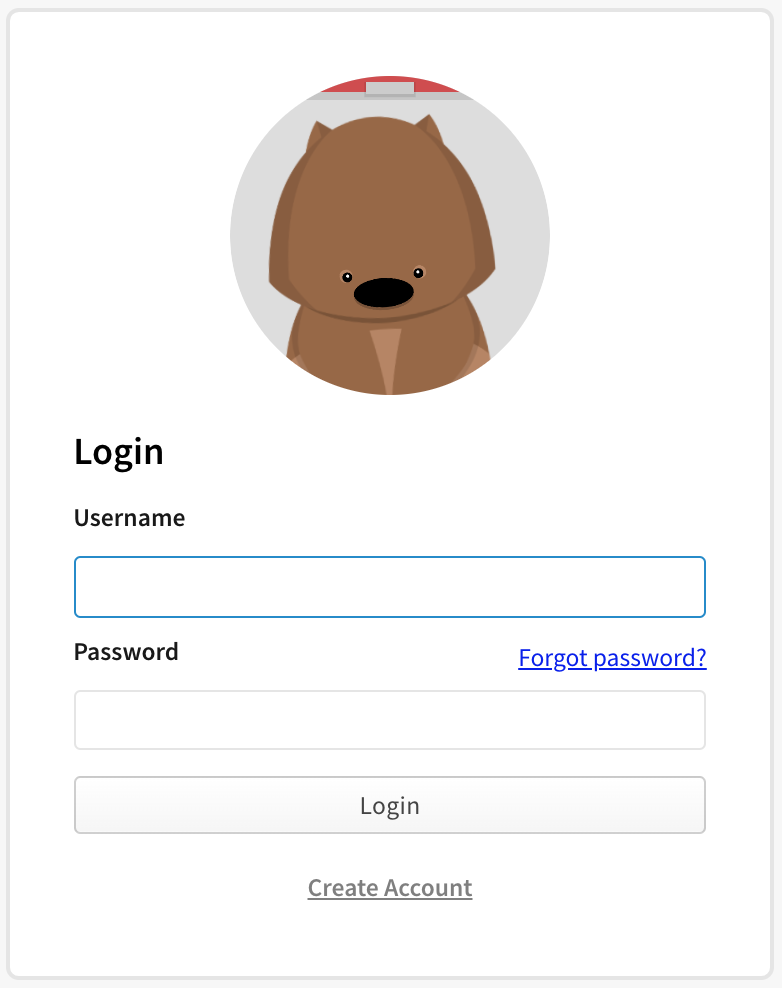
On the npm "Sign In" page, enter your account details and click Sign In.
-
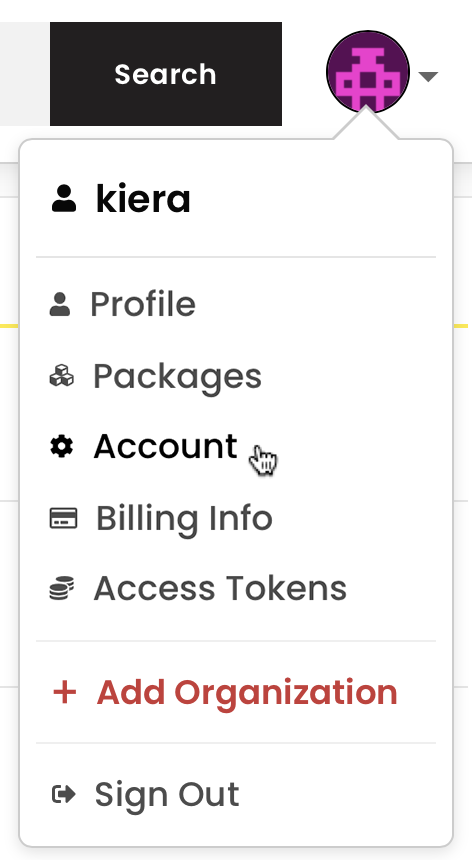
In the upper right corner of the page, click your profile picture, then click Account.
Linking your npm and GitHub accounts
-
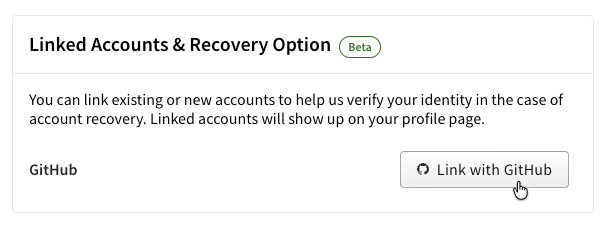
On the account settings page, you will find a button to link your GitHub account. Click that.
-
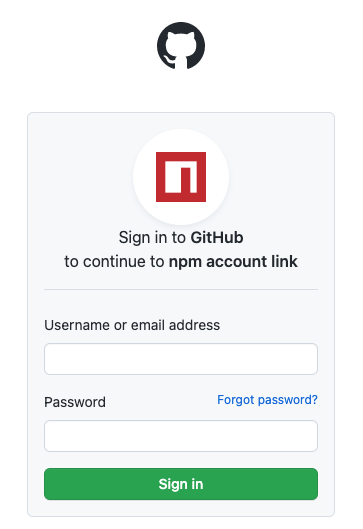
If you are not currently logged in to GitHub you will be prompted to go through the authentication flow.
-
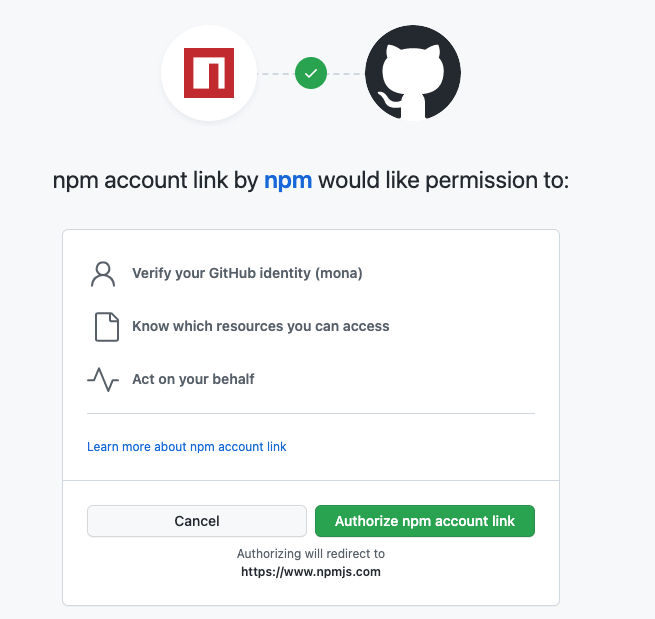
After successfully logging in, or if you already had an active browser sessions, you will be prompted to "authorize npm account link", click the button.
-
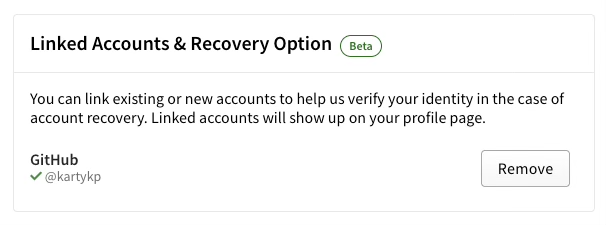
You will be redirected to npm and the link will show as successful in your settings.
Removing your GitHub account from npm
-
On the account settings page, you will find a button to remove your GitHub account. Click that.
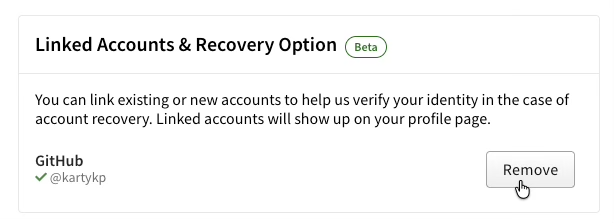
Note: Clicking remove will only remove the link from your npm account. You need to
revokepermissions from your GitHub app authorization settings to permanently remove the integration from your GitHub account
Managing user account profile settings from the command line
Note: Your npm client must be version 5.5.1 or higher to change your account settings from the CLI. To update to the latest version of npm, on the command line, run npm install npm@latest -g
Viewing user account profile settings from the command line
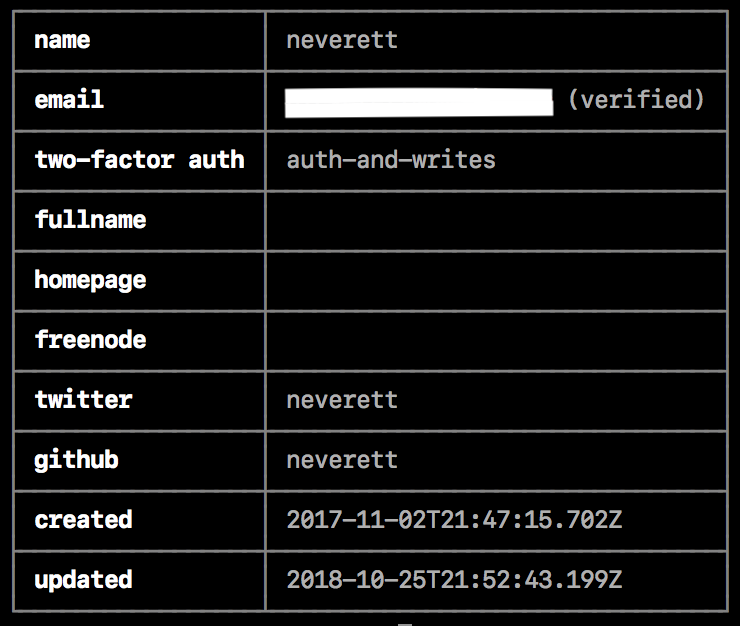
To view your user profile settings from the CLI, on the command line, run the following command:
npm profile get
Updating user account profile settings from the command line
From the CLI, you can change the following properties for your user account:
emailtwo-factor authfullnamehomepagefreenodepassword
-
On the command line, type the following command, replacing
propertywith the name of the property, andvaluewith the new value:npm profile set <prop> <value> -
When prompted, provide your current password.
-
If you have enabled two-factor authentication on your account, when prompted, enter a one-time password.
For more details, see the profile command line documentation.
Setting a password from the command line
- On the command line, type the following command:
npm profile set password
-
When prompted, provide your current password.
-
When prompted, type a new password.
To protect your account, when you reset your password from the command line, it must:
- be longer than 10 characters
- not contain part of your username
- not be in the "Have I Been Pwned" breach database
Configuring two-factor authentication from the command line
Enabling two-factor authentication on your account helps protect against unauthorized access to your account and packages.
To enable, configure, and disable two-factor authentication from the command line, see "Configuring two-factor authentication".


